Birim Approvals
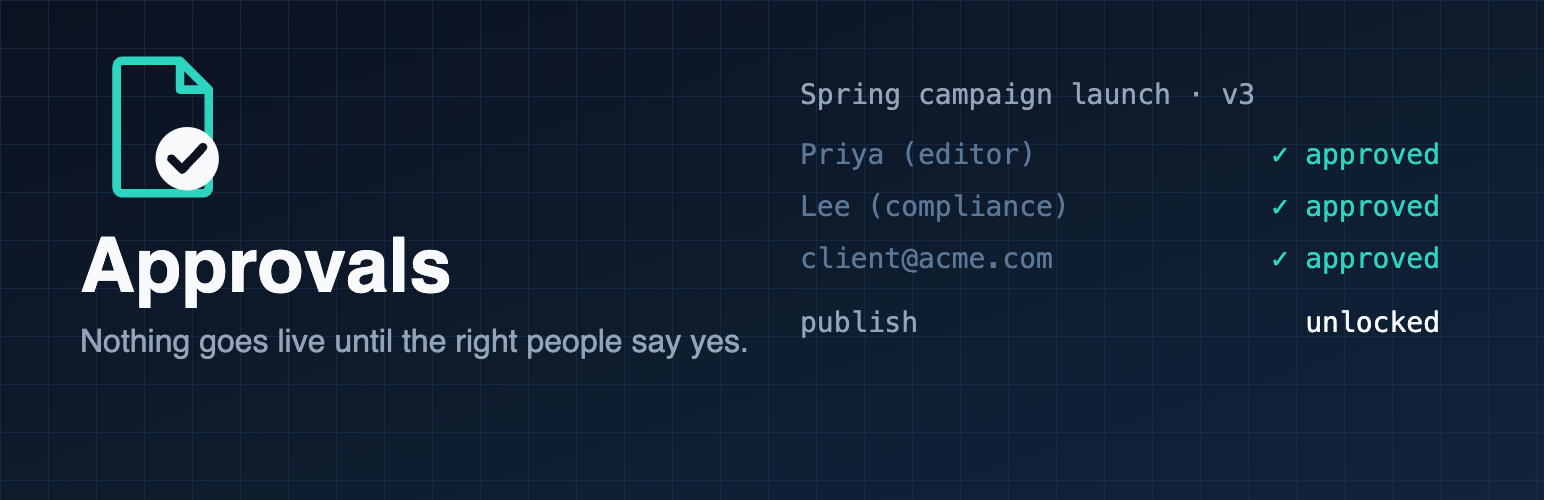
Nothing goes live until the right people approve that exact version, including clients and legal reviewers who have no WordPress account. Every decision is recorded.
Why
Today, clients approve drafts by email and someone publishes by hand. WordPress's "Pending Review" doesn't say who must approve, doesn't remember what they approved, and anyone who can publish can skip it.
- A real publish gate: blocked everywhere (editor, Quick Edit, REST API, other plugins) until approved. Administrators can override only with a recorded reason.
- The exact version: edit after approval and approvers are asked again automatically.
- Outsiders without accounts: personal expiring links, or a shared link with email codes for a whole client team. Works with Public Post Preview.
- Files too: logos, contracts, photos from the media library.
- A record: who approved which version, when, with comments. CSV export, privacy tools, IP retention.
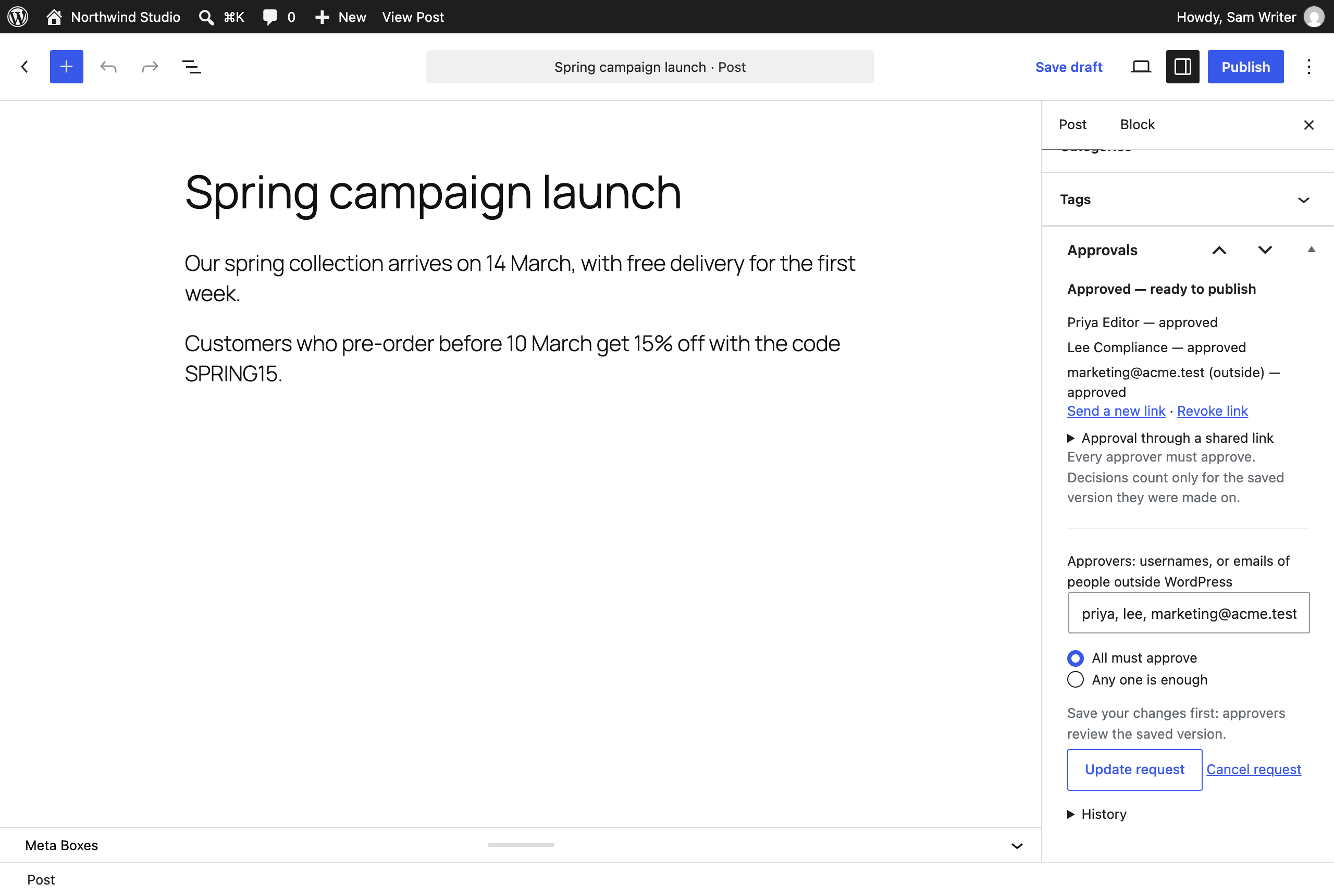
On a phone, the client's review page looks like this:
Who this is for: site owners setting it up, writers asking for approval, and the people who approve (team members and clients).
The people
| Person | Typical role | What they do |
|---|---|---|
| Site owner | Administrator | Turns approvals on, chooses defaults, can override with a reason, reads the log |
| Writer | Author or Editor | Writes the draft, names approvers, publishes once approved |
| Team approver | Editor, or any role (even Subscriber) | Approves or requests changes in WordPress |
| Outside approver | No account (client, legal, compliance) | Approves through a personal link or a shared link with an email code |
Flow 1: set up (site owner, once)
- Activate Birim Approvals. Nothing changes yet.
- Settings > Approvals: tick the content that needs approval (for example Posts and Pages; Media files for deliverables).
- Optional: default approvers per type (usernames or emails) and the rule (all must approve / any one is enough).
- Optional (WordPress 6.9+): "All Notes must be resolved".
- Optional: link expiry (default 7 days) and how long IP addresses are kept in the log (default 12 months).
Flow 2: get a post approved (writer)
- Write the draft and save it. Approvers review the saved version.
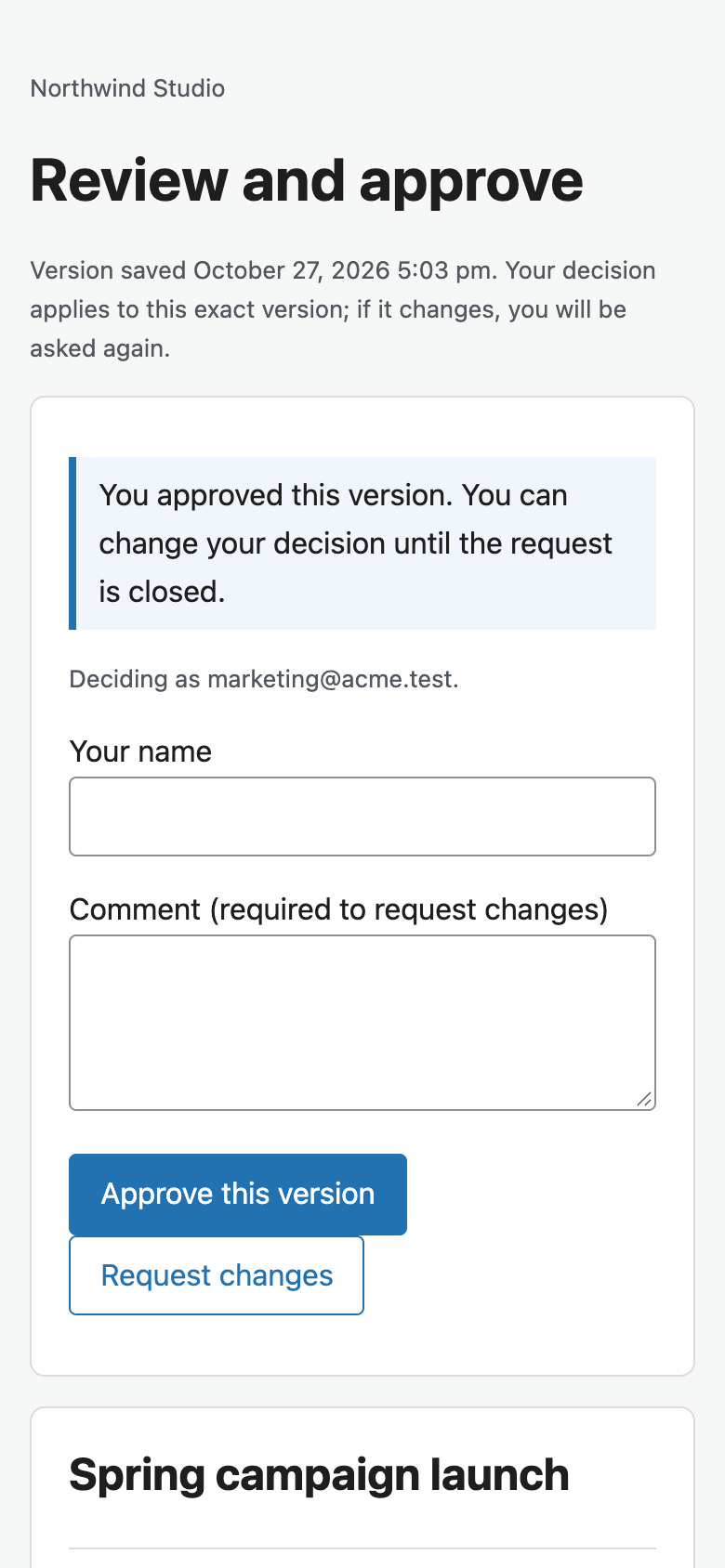
- In the Approvals box (editor sidebar): type approvers, for example
priya, lee, client@acme.com. Usernames become team approvers; emails without an account become outside approvers who get a personal link. - Choose the rule and click Request approval. Everyone is emailed.
- Watch the box: each approver shows waiting, opened, approved, requested changes (with their comment) or decided on an older version.
- If someone requests changes: edit, save. Earlier decisions stop counting and approvers are asked again automatically.
- When the box says Approved — ready to publish, click Publish. Trying earlier shows "Publishing failed. This post needs approval…" and the post stays a draft.
Flow 3: approve as a team member
- You get an email, and Dashboard > Approvals shows a count.
- Open Preview to read the draft (works even if your role cannot edit posts).
- Click Approve this version, or write a comment and click Request changes.
- If the writer changes the post, you are emailed again; your old decision no longer counts.
Flow 4: approve as a client with a personal link
- You get an email "Please review and approve: …" with a link. No account, no password.
- The link opens a review page with the exact version you are approving.
- Type your name, then Approve this version or Request changes (with a comment).
- You can change your decision until the request is closed. The link expires after the period the site chose.
Flow 5: approve through a shared link (a team at the client)
- The writer opens "Approval through a shared link" in the Approvals box, types who may approve (for example
@acme.com), and creates the link. It is shown once; they copy it and send it. - Anyone with the link sees the draft. To decide, they enter their work email and receive a 6-digit code.
- Only emails that match the allowed list get a code. A forwarded link alone can never approve.
- Each verified person is recorded by name and email, like any other approver.
Flow 6: already using Public Post Preview
- Keep using Public Post Preview to share the draft.
- Turn on the shared link (Flow 5) for that post. Its Public Post Preview page now shows an approval bar at the bottom with the same email-code step.
Flow 7: approve a file (deliverables)
- Settings > Approvals: tick Media files.
- Open the file in Media > Library > Edit (or "Manage" in the media modal). Use the same Approvals box.
- Outside approvers see the file on the review page and download it through their link.
- Replacing the file's content or renaming it makes earlier approvals stop counting.
Flow 8: publish without approval (administrator)
- In the Approvals box, open "Publish without approval", type the reason, click Allow publishing, then Publish.
- The override and its reason are recorded in the log. The reason is used once.
Flow 9: records and privacy
- Settings > Approvals shows the latest log entries; Download log (CSV) exports everything.
- IP addresses and browser details are blanked after the retention period; the decisions stay.
- Tools > Export / Erase Personal Data include approval records. Erasing removes the name, email, IP and browser from a person's records and keeps the decision as a business record.
Problems and solutions
| Problem | Why it happens | Solution |
|---|---|---|
| "Publishing failed. This post needs approval…" | The content type requires approval and this version is not approved yet | Request approval in the Approvals box, or wait for the remaining approvers |
| "Resolve all notes before publishing" | The Notes rule is on and a Notes thread is still open | Resolve the open Notes in the editor, then publish |
| Approvals reset after an edit | A saved change to title, text, excerpt or featured image (or the file) makes it a new version | Expected. Approvers are emailed; they approve the new version |
| A change was made but approvals did not reset | Only title, text, excerpt and featured image count; categories, tags and SEO fields do not | Use the comment or Notes for those, or request approval again |
| The approver never got the email | The site's own email is often blocked or sent to spam | Install an SMTP plugin; ask them to check spam; use "Send a new link" |
| "This link is not valid any more" | The link expired, was replaced by a newer one, was revoked, or the request was cancelled | Click "Send a new link" next to their name |
| "Too many attempts" on the review page | Several invalid links from the same network in 10 minutes | Wait 10 minutes; make sure the full link was copied |
| "This email address cannot approve through this link" | The email does not match the shared link's allowed list | Add the address or its domain when creating the shared link |
| "Too many codes requested" | More than 3 codes for the same email within an hour | Wait an hour, or send that person a personal link instead |
| The code does not work | Codes expire after 15 minutes and allow 5 tries | Ask for a new code on the same page |
| Images do not load on the review page | The images are protected (for example by Birim Private Files) and the reviewer has no account | Approve the files separately, or make the images public |
| A team approver cannot open the preview | They are not on this post's request | Add them as an approver and update the request |
| The Approvals box is missing | The content type is not ticked in Settings > Approvals | Tick it |
| An administrator needs to publish urgently | Approval has not finished | Use "Publish without approval" with a reason; it is logged |
| Need proof of who approved | Disputes, audits | Download the log as CSV: it shows who, when, which version, comment, IP |
| Is this a legal signature? | It is a sign-off record | For contracts that need a legal e-signature, use an e-signature service |
Optional paid service (planned)
The plugin is complete and free. We plan an opt-in service for reliable approval email, PDF approval certificates, an off-site audit archive and SMS verification. Join the waitlist and tell us what you'd use.
Download
Birim Approvals is coming to WordPress.org. This page will link to it once it is approved.